Create Field
Create a new field layout directly in the app by setting a reference A-B line and defining your bed properties.
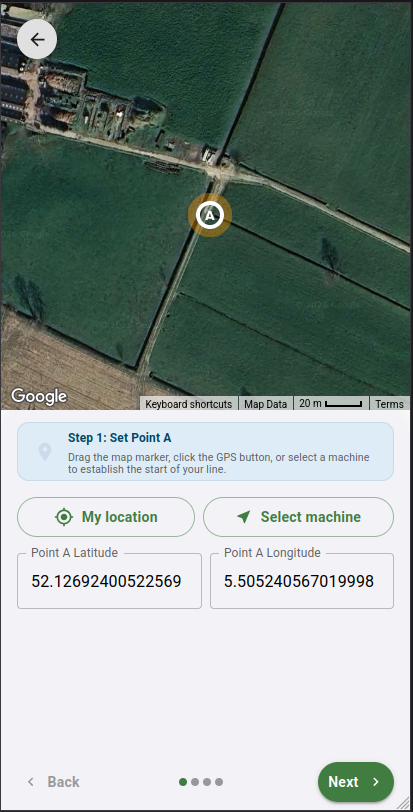
1. Set Your Starting Point (Point A)
Point A is the absolute beginning of your reference line. Go to the starting corner of your first bed. You have four ways to set this point:
- Use the Machine (Recommended): Drive your machine to the start of the row. Tap Select Machine to connect to it, then tap Set from [Machine Name]. This uses the machine's GPS.
- Use Your Phone: Stand at the start of the row and tap My location to use your phone's GPS.
- Use the Map: Drag the "A" marker manually to the correct spot on the satellite map.
- Enter Coordinates: Type the latitude and longitude directly into the text fields.
2. Set Point B
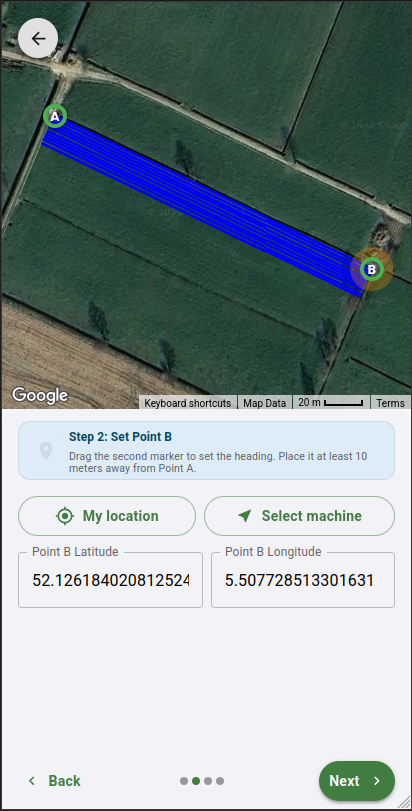
Point B tells the system which heading your beds run and their length. Move at least 10 meters down the row from Point A.
Set Point B using the same methods as above (drive the machine forward, walk with your phone, drag the "B" marker, or enter the coordinates).
Note: A straight A-B line will appear on your map.
3. Adjust Bed Parameters
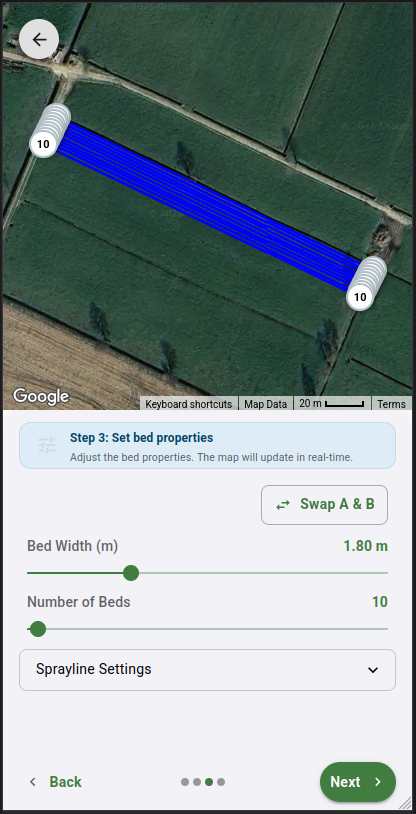
Now, tell the system how your field is physically laid out. The map will update as you adjust these settings:
- Bed width: Set the standard width of your tulip beds (in meters).
- Number of beds: Enter the total number of beds in this field.
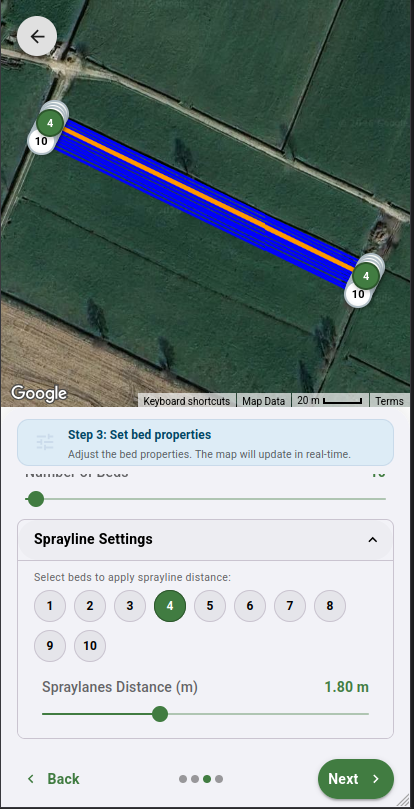
- Spraylanes: If you leave wider gaps for your tractor tires, open the Spraylane Settings menu.
Tap the numbered circles (1, 2, 3...) to select which specific beds act as spraylanes. Use the Spraylanes distance slider to set the wider gap for these lanes. They will light up orange on your map.
💡 Pro-Tip: Did the beds draw on the wrong side of your A-B line? Just tap Swap A & B to flip the entire field to the other side of the line.
4. Review and Save
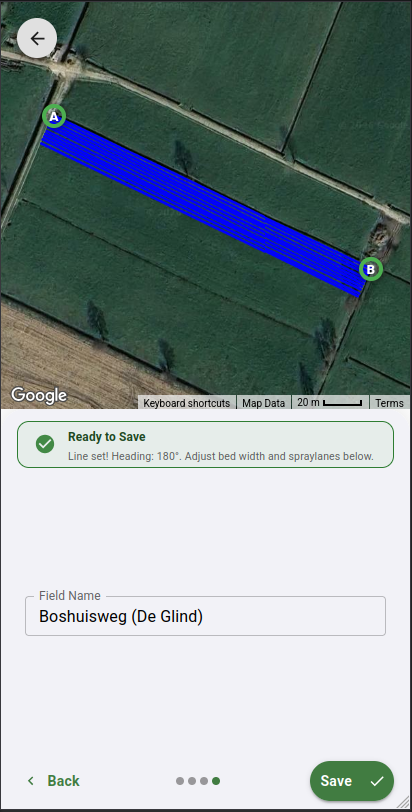
Check the map to ensure the blue lines (standard beds) and orange lines (spraylanes) line up with your field.
- Name: We suggest a field name based on the nearest street. You can change this to whatever you normally call the field.
Tap Save to finish! Your field is now ready.