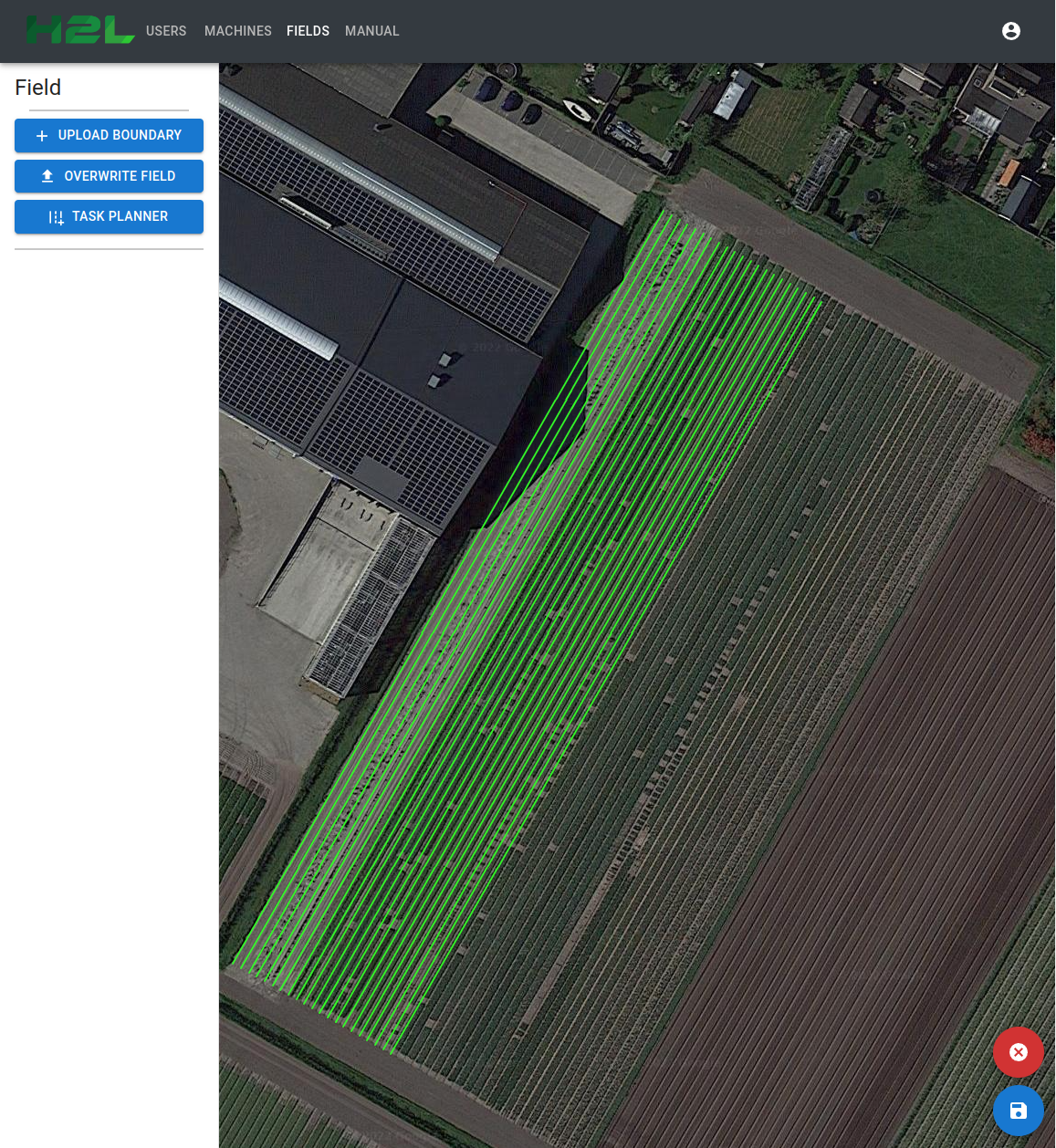
Uploading field and field boundaries
Shown below, is a series of steps that are required to upload your field in a CSV, KML or zip file into the H2L Selector app.
1. To upload a new field, go to h2lselector.com/fields/add and select the en csv, kml or zip filme from your computer.
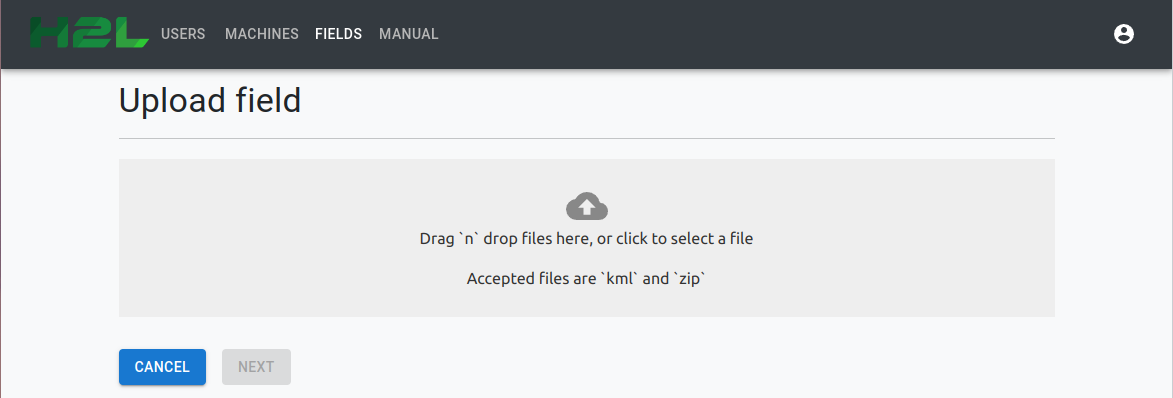
2. The selected file will show itself in the "drag 'n' drop" box like shown below.
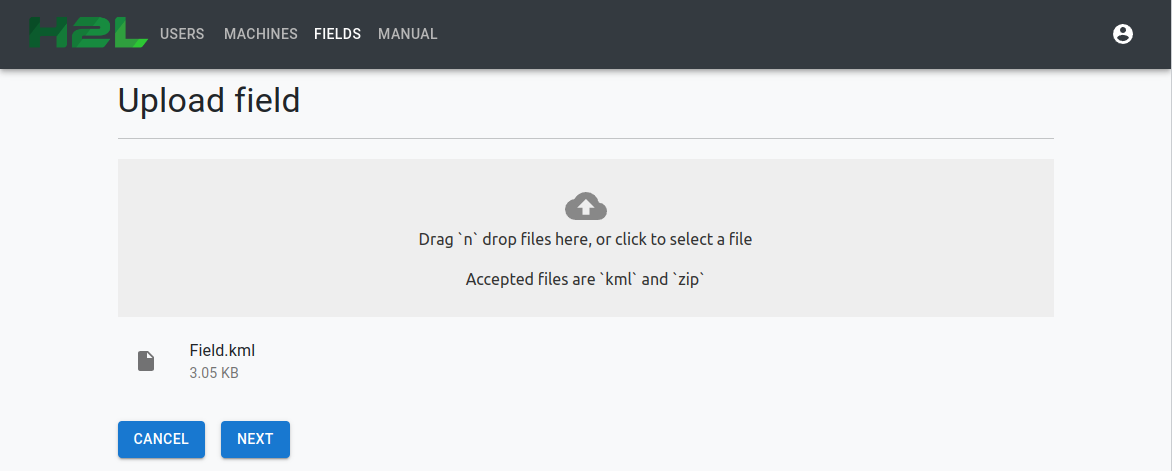
3. Click on "next" to upload the file.
4. After the file is uploaden, you could possibly upload a boundary file. You can ignore this step if you do not have this file.
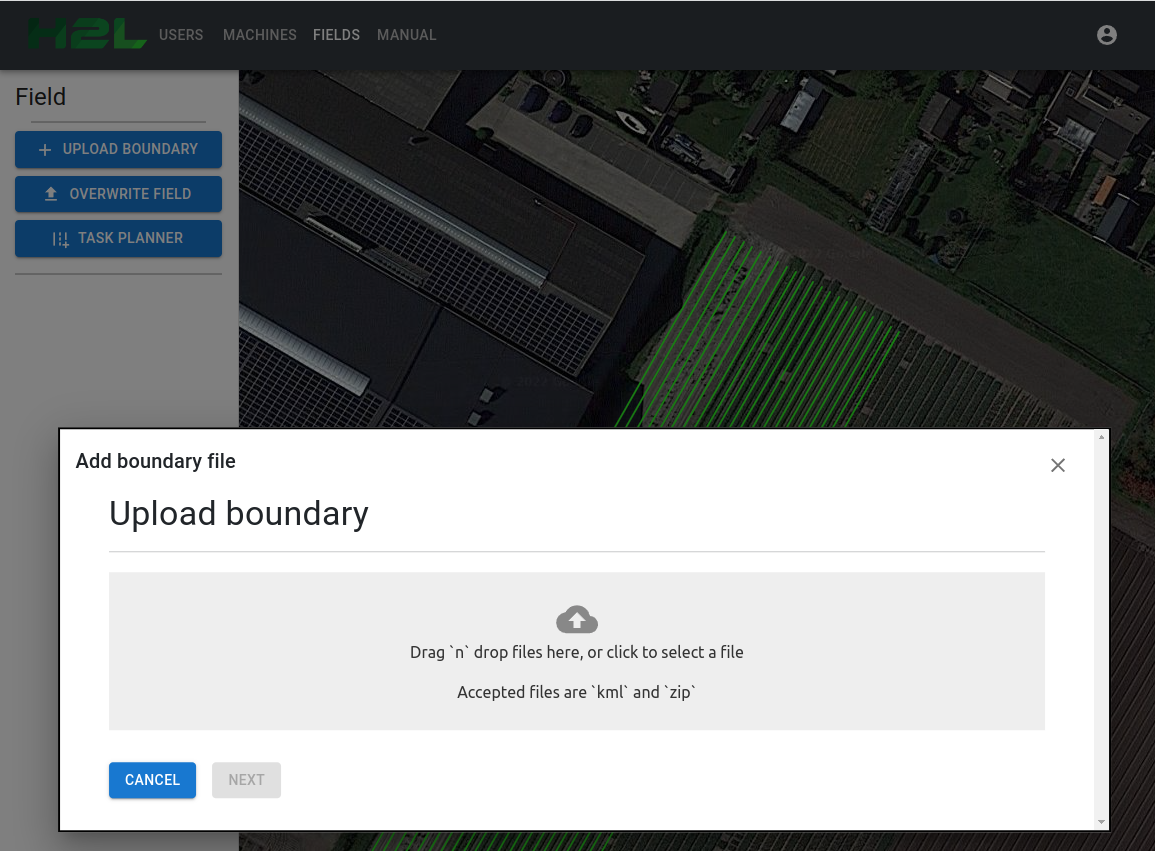
5. Click on "next" to upload the boundary file. When the upload was successful, the boundaries will show on the map.
6. Click on the save button.