Exporting a boundary from MyJohnDeere
Below is a step-by-step description of how to export the boundary of a plot as a .zip from the MyJohnDeere environment, illustrated with several screenshots.
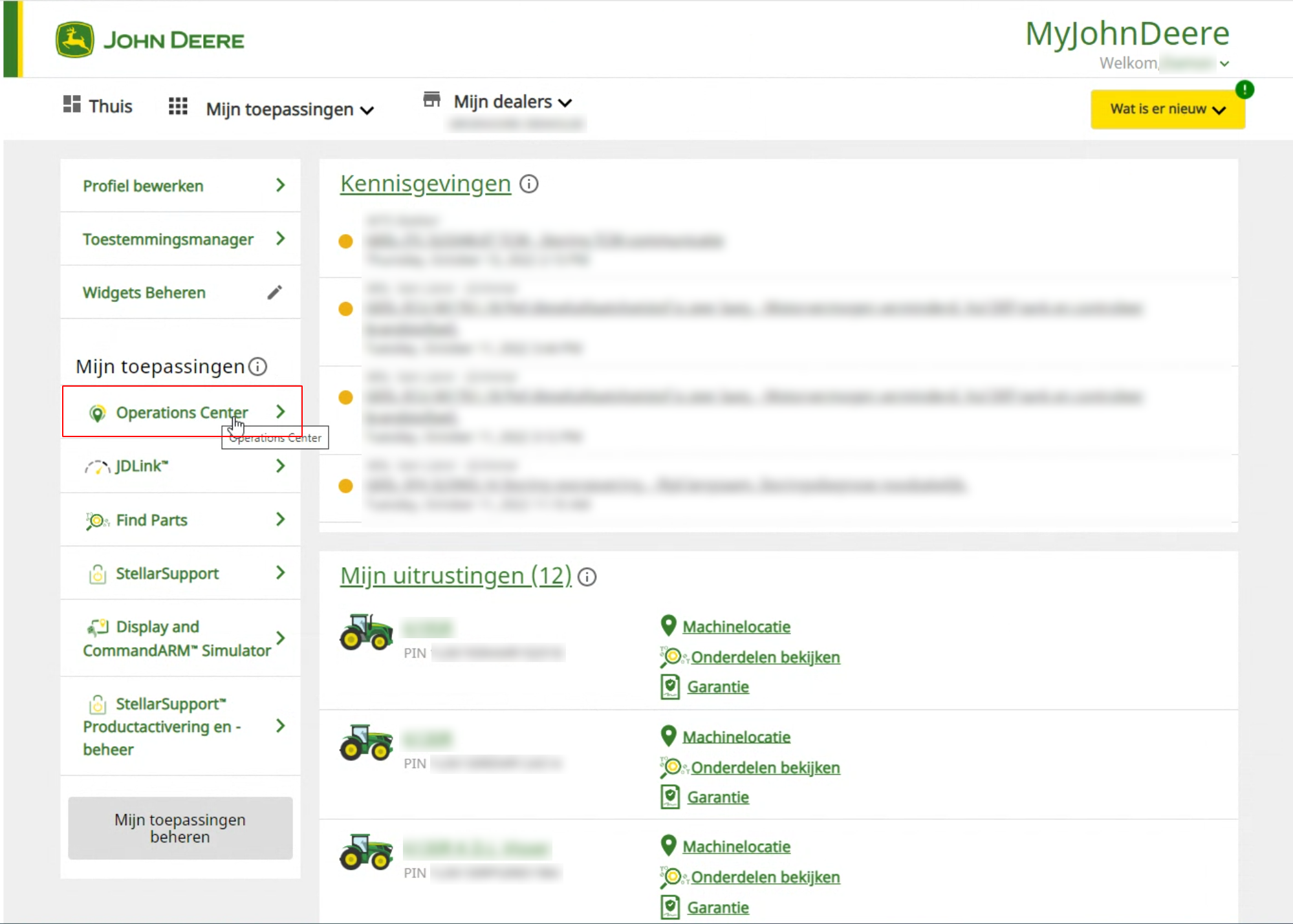
- Open MyJohnDeere and click on 'Operations Center' (Left on the home screen under 'Mijn toepassingen').
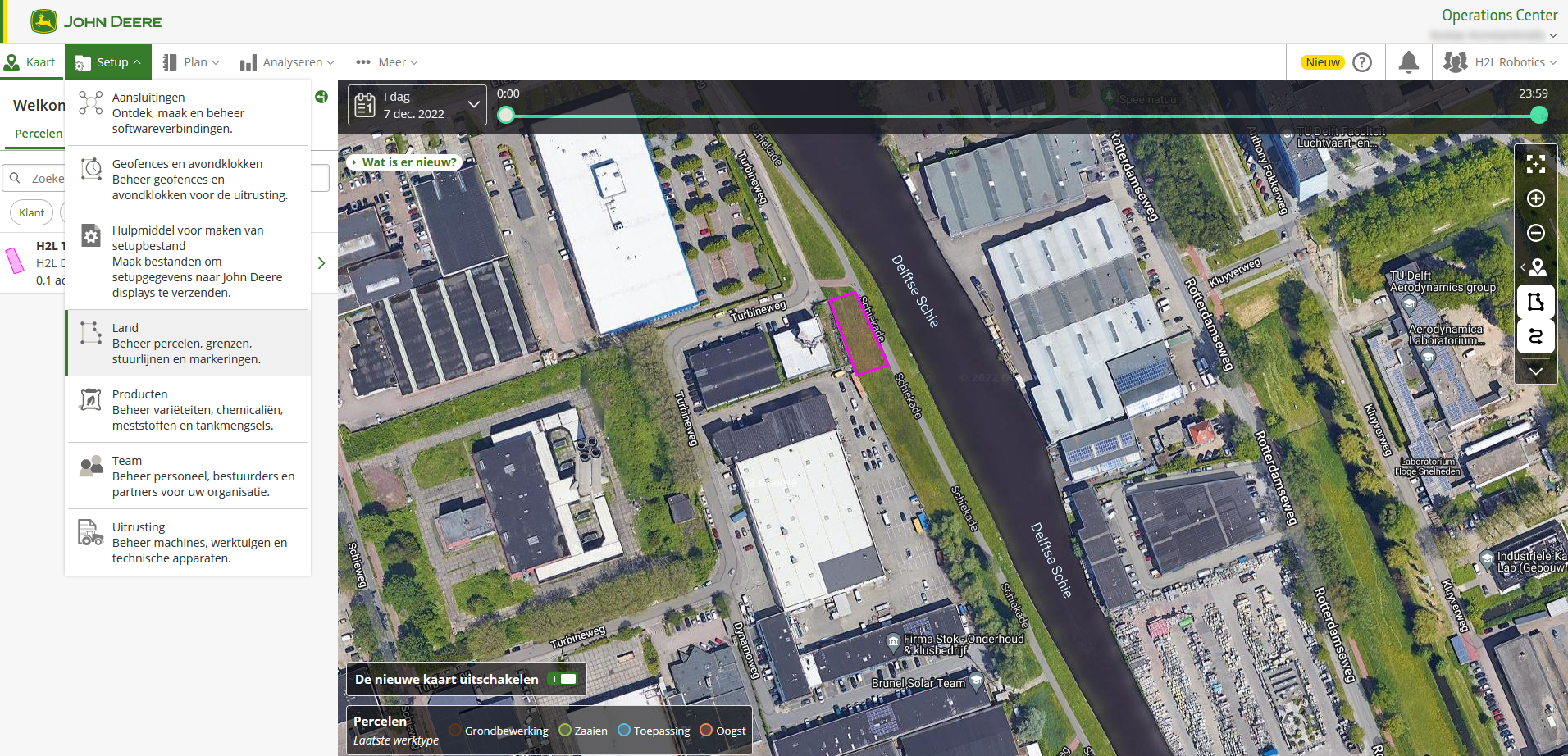
- Open the drop-down menu 'Setup' en klik daar op 'Land'.
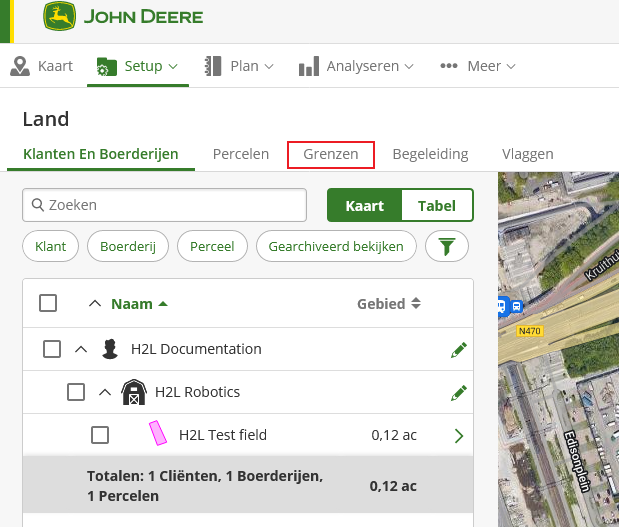
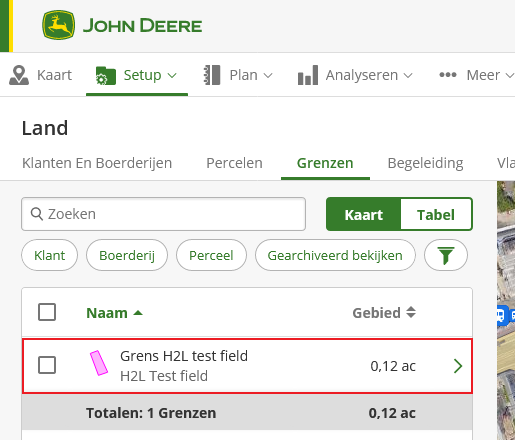
- Now go to the 'Grenzen' tab.
- Select the plot whose boundaries you want to export.
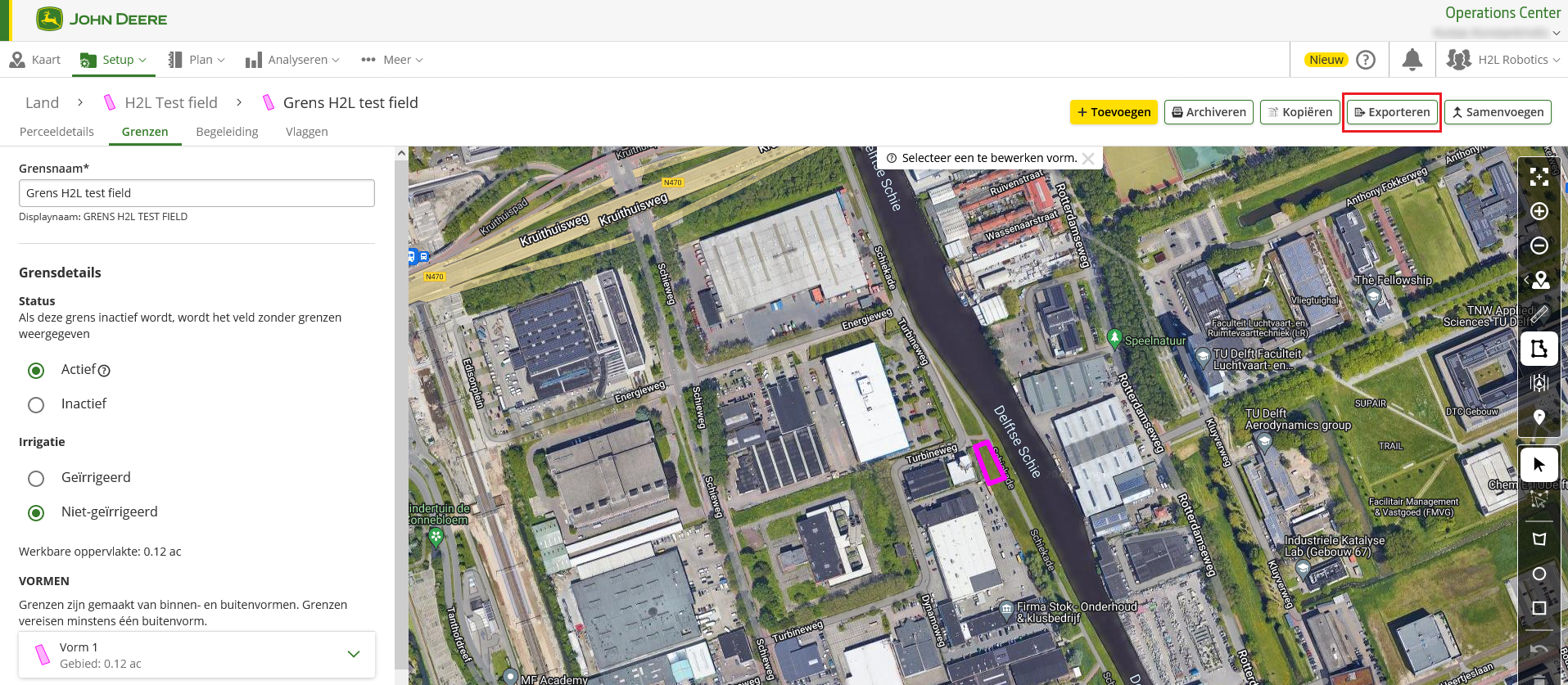
- Click on the 'Exporteren' button at the top right.
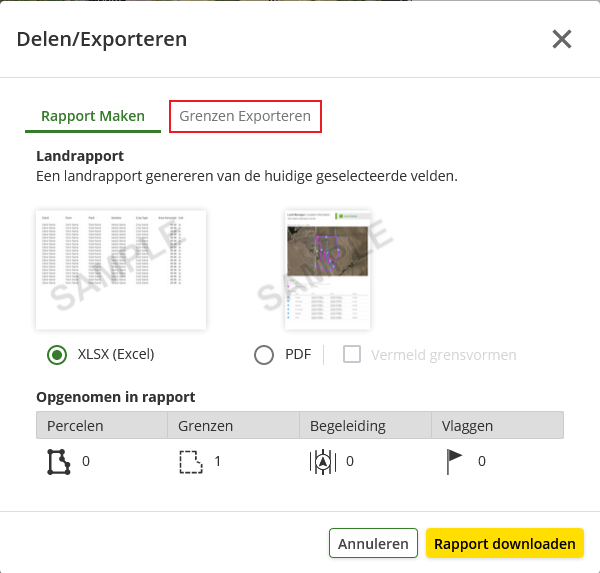
- Select the 'Grenzen Exporteren' tab in the menu that now appears.
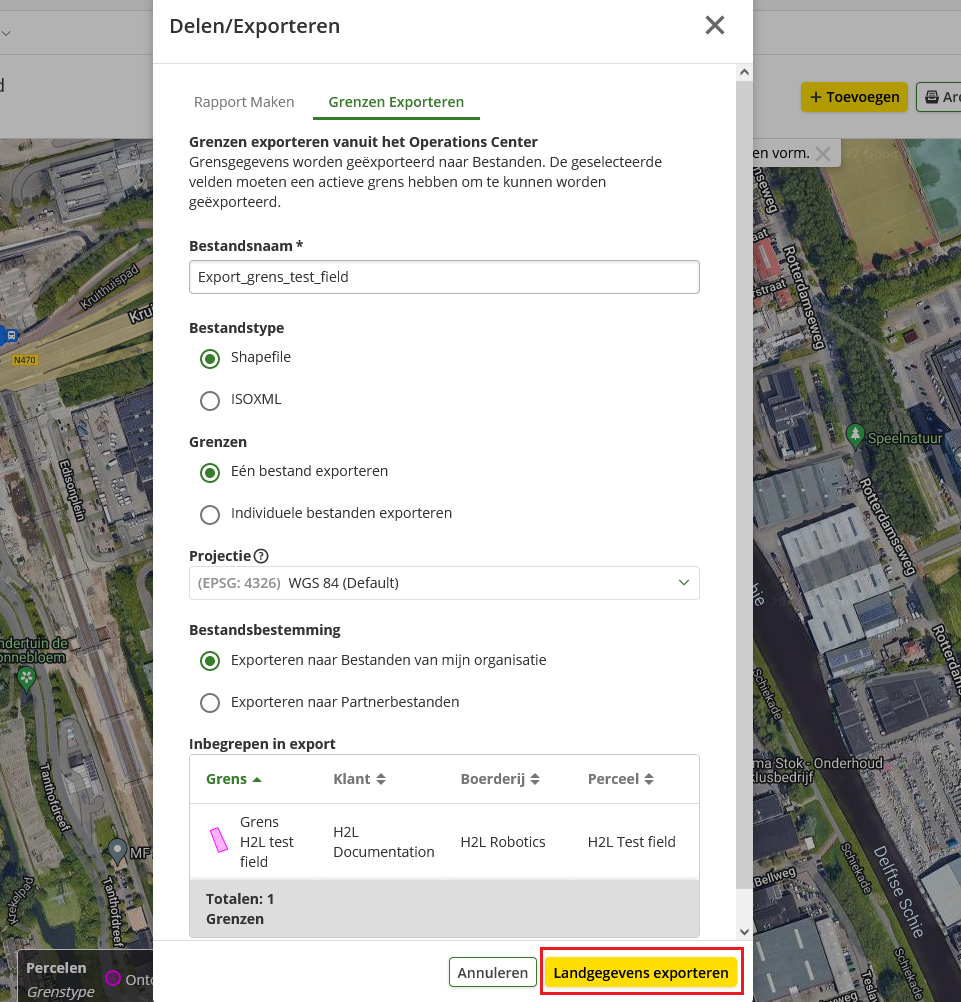
- Enter a filename and then click on 'Landgegevens exporteren'.
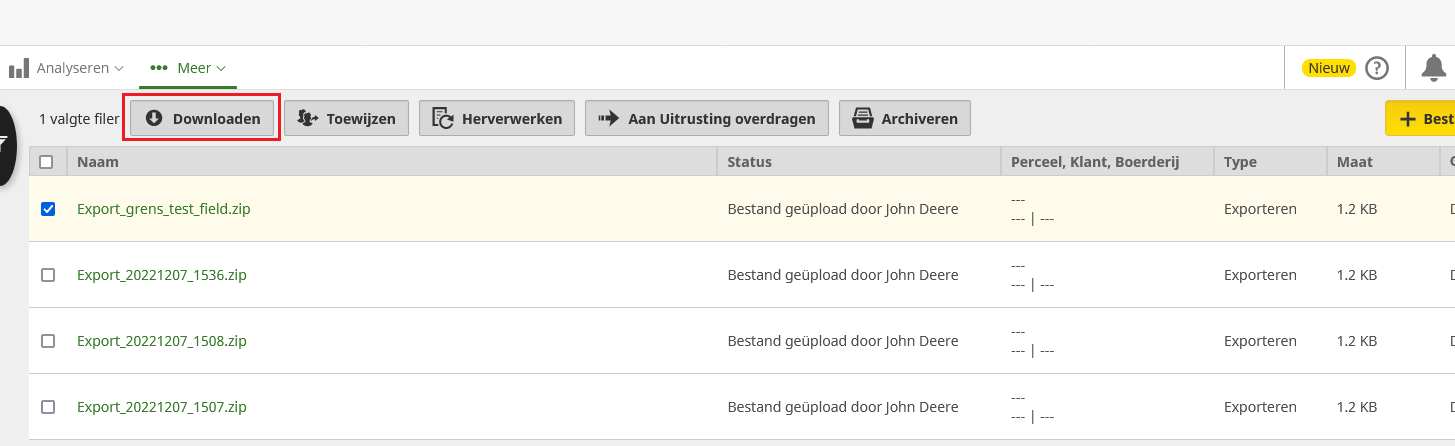
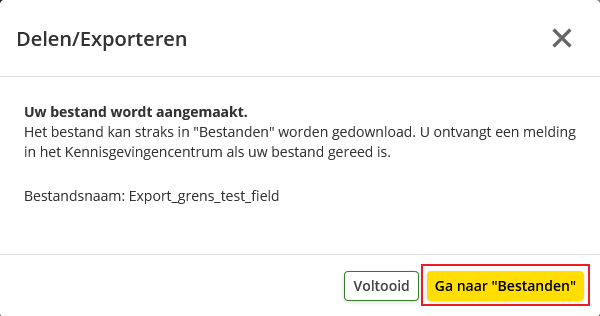
- You will now see a loading screen. Press 'Ga naar Bestanden' when the export is complete and download the boundary file in the same way
- Now tick the box next to the file you just exported (in the box to the left of the filename). Now click on download.